The Apple iPhone and iPads are made for easy use and user convenience and as such the various features like recent contacts so as to easily get access to these contacts. If you then think this feature may pose some privacy issues, then you have got the choice to delete recent contact from your devices. The question is how? All you need to delete recent contacts by following the steps below:
Step 1: Open your iPhone or iPad Contact Application;
Step 2: Take a look at the button section and select Contacts. This will allow you view your contacts;
Step 3: Click on any contact you want to delete;
Step 4: You will then see the information of the contact; click Edit on the upper right corner;
Step 5: Pull it down to the bottom you will see the Delete Contact icon, click it and then confirm the action.

Following the steps above, your recent contacts will be successfully deleted on you iPhone or iPads.
How to Delete Recent Contacts Showing in Text History-Recoverable
For every user of the Apple iPhone and iPads, it is a common feature on their mobile device to have recent contacts showing or popping up in text history. This feature is quite exciting as it allows you to easily and seamlessly add names of any of your contact you wish to send the text to. However, this feature also pose some challenges to users and as such they wish they could just delete the recent contacts from the text history. A lot of people may not know how to go about this on their iPhones and iPads but it is a very easy task and you should follow the steps below to know how.
Open your Text Messaging Application on your iPhone or iPad
Type in the name of any contact in the space provided for the person you ate sending the text to
You will then see a cluster of contacts showing up and notice the ‘I’ symbol in a circle next
Click on the ‘I’ symbol and you will see Remove From Recents in a new page
Click on Remove From Recents to confirm the action
Following the steps above, you will successfully delete recent contacts showing in your text history.
Do you like this story?
Sponsor Ads:
Gihosoft iPhone Data Recovery is a professional iPhone Data Recovery software to get back all your lost text message, photo, video, call history, note, contact and more from iPhone/iPad/iPod Touch. It offers a full solution to recover your lost data in different tough situations. Besides recovering data directly from iPhone, iPad and iPod touch, it also allows you to recover data from iCloud and iTunes backup files.

How to Bypass iPhone Password without Restore (Using Siri)
Siri is official Apple device voice assistance and it provides answers to your questions and commands either from the contents on your iPhone or from the internet. However, there is a little loop in Siri that can help you bypass your iPhone lock screen if you’re still running iOS 8 - 10.1.
Step 1. Press and hold down the iPhone home button to activate Siri. Then ask Siri “What time is it?” Siri will show you the clock icon. Tap on it to open World Clock feature.
Step 2. Tap “+” button and then simply enter any words when searching the city. Tap the words to choose “Select All”.
Step 3. Choose “Share” and click “Message icon”. It will lead you to edit a new message.
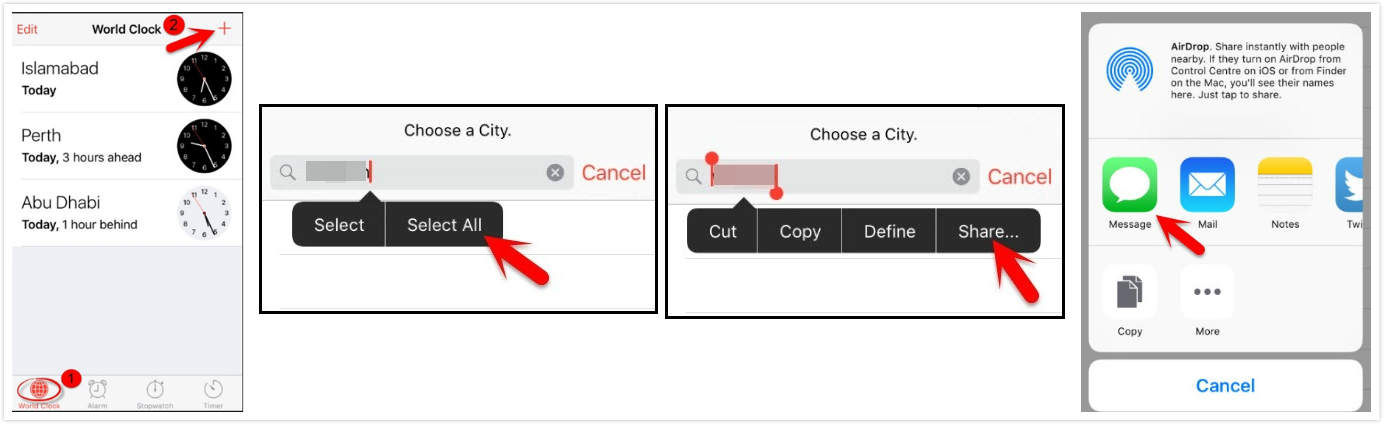
Step 4. In the “To” field, tap any words and then tap the “return” button in your keyboard. Your textual content will become green.
Step 5. Now tap “+” icon and then “Create new contact”.
Step 6. Tap "add photo" and select “Choose Photo”. It will open the photo library on your iPhone.

Step 7. Tap the home button after several seconds and it will lead you to your iPhone home screen!
Disadvantages:
- This method is only available for iOS iOS 8 – 10.1.
- Even if your iPhone is in iOS 8 to iOS 10.1, it doesn’t always work. It works depending on luck.
- The Siri feature should be enabled when your iPhone is locked.
- It helps bypass the password, but it doesn’t change or reset your password. Every time you want to get into your locked iPhone, you need to follow those steps.
How to Bypass iPhone Passcode via iCloud
Unfortunately, this method only works for those who have enabled Find My iPhone on their device before it was locked.
Step 1. Go to https://www.icloud.com/#find and sign in with уоur Aррlе ID and раѕѕwоrd.
Stер 2. Cliсk “Find iPhone”.
Step 3. Click “All Devices” аt thе tор оf уоur brоwѕеr windоw.
Step 4. Sеlесt the iPhоnе that you would like to unlock.
Step 5: Cliсk “Erаѕе iPhone” and confirm to proceed

After these steps, your iPhone will be erased. Nevertheless, don’t forget that this method is for only those who have enabled Find My iPhone. Your iPhone should also connect to internet. Jihosoft iPhone Backup Extractor Extract and recover all types of data from iPhone backup files, such as camera roll photos, videos, SMS, contacts, reminders, WhatsApp, and etc.
Gihosoft Free iPhone Data Recovery is a professional iPhone Data Recovery software to get back all your lost text message, photo, video, call history, note, contact and more from iPhone/iPad/iPod Touch.


No comments:
Post a Comment